Quick Start
This guide walks you from logging in to completing your first meaningful analysis.
Before you begin
You need:
- an account → see Create an account
- access to the platform → see Sign in
After signing in, you will land in Portfolio Hub.
Step 1 — Select an area
Portfolio Hub is where you manage and access your working areas.
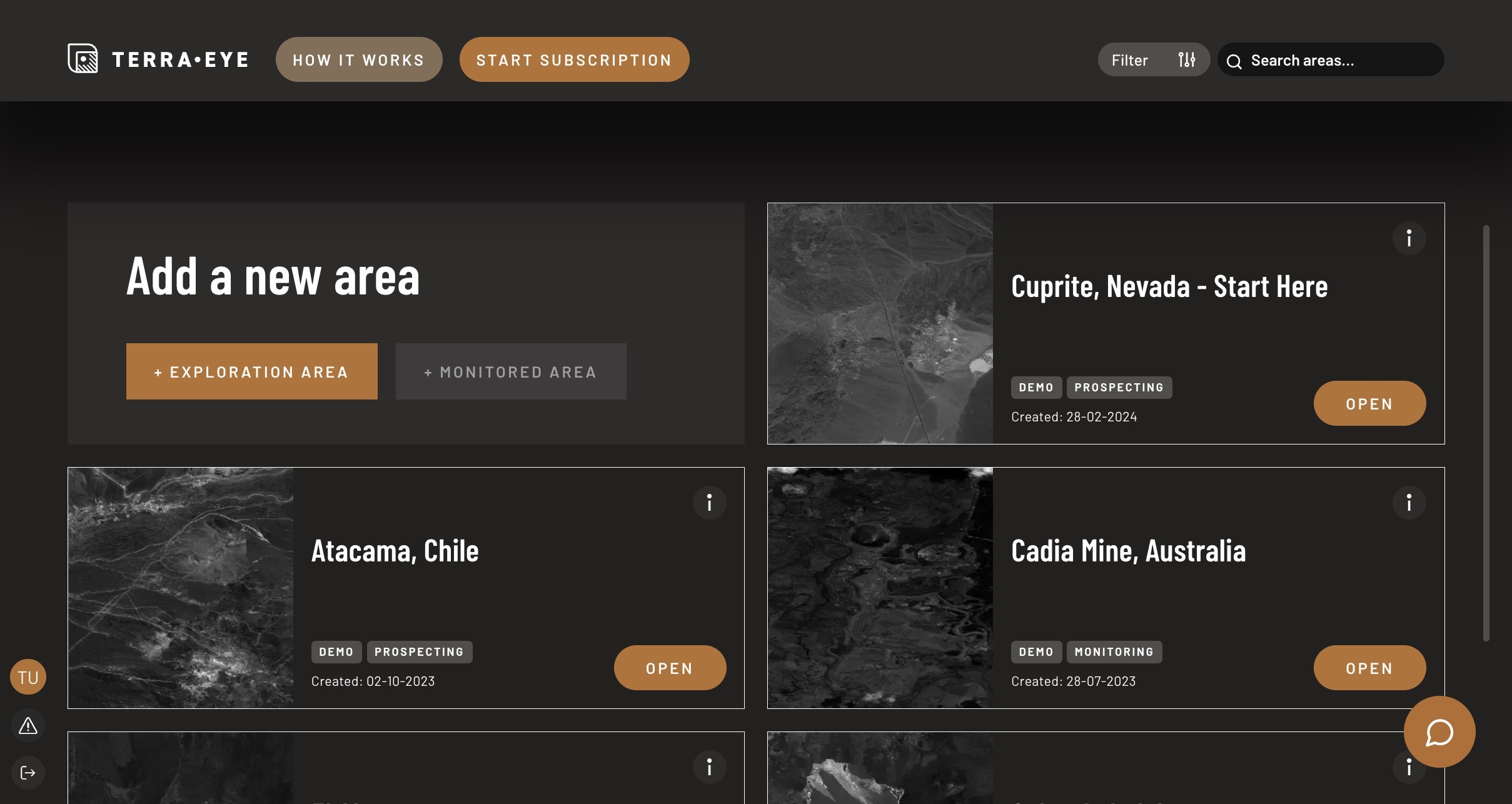
Each card represents one area.
For your first session, open any demo area.
Opening an area switches the platform into its dedicated workspace.
Step 2 — Understand the workspace
Once inside an area, you are in the analysis environment.
The workspace consists of:
- the map (visual interpretation)
- the left panel (data, tools, controls)
All actions from now on apply only to the selected area.
Step 3 — Load and display data
In the left panel:
- Go to Data
- Open any available result
- Switch to Layers
- Enable its visibility
You should now see the dataset displayed on the map.
Step 4 — Inspect and interpret
To better understand the result:
- Use Spectral Editor to inspect pixel behavior
- Zoom and compare areas on the map
- Toggle layers on/off for contrast
At this stage, you are already performing a real analysis workflow.
Step 5 — Refine the output (optional)
To improve interpretation:
- Use Masking to remove vegetation, water, snow or clouds
- Adjust visualization in Map Settings
- Organize layers for clarity
What just happened
You have:
- selected an area in Portfolio Hub
- entered its workspace
- loaded a dataset
- visualized it on the map
- inspected spectral characteristics
- optionally refined the result
This is the core TerraEye workflow.
Where to go next
If you want to:
- understand area management → Portfolio Hub
- understand the workspace structure → Workspace panel
- learn specific methods (SAM, MTMF, GSI) → User Guide