Left Sidebar
The left sidebar is the main navigation panel in TerraEye. Below is a detailed explanation of each icon and its functionality, along with visual examples.
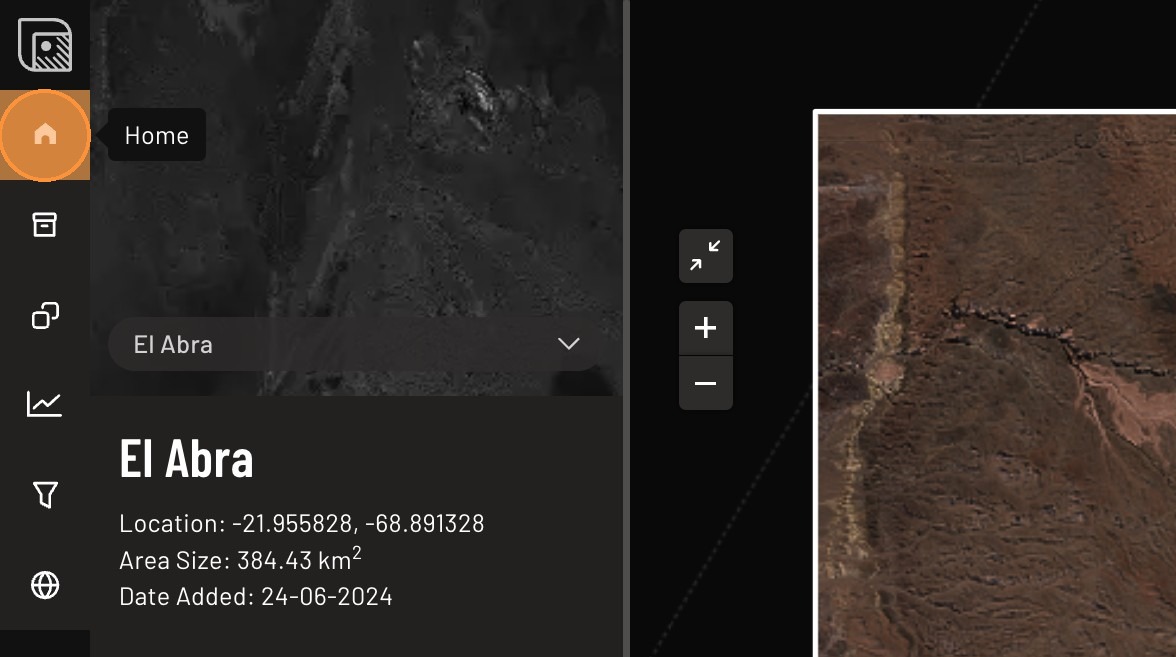
1. Home
Description: The Home Tab provides basic information about the selected area, including its name, size, and date added.

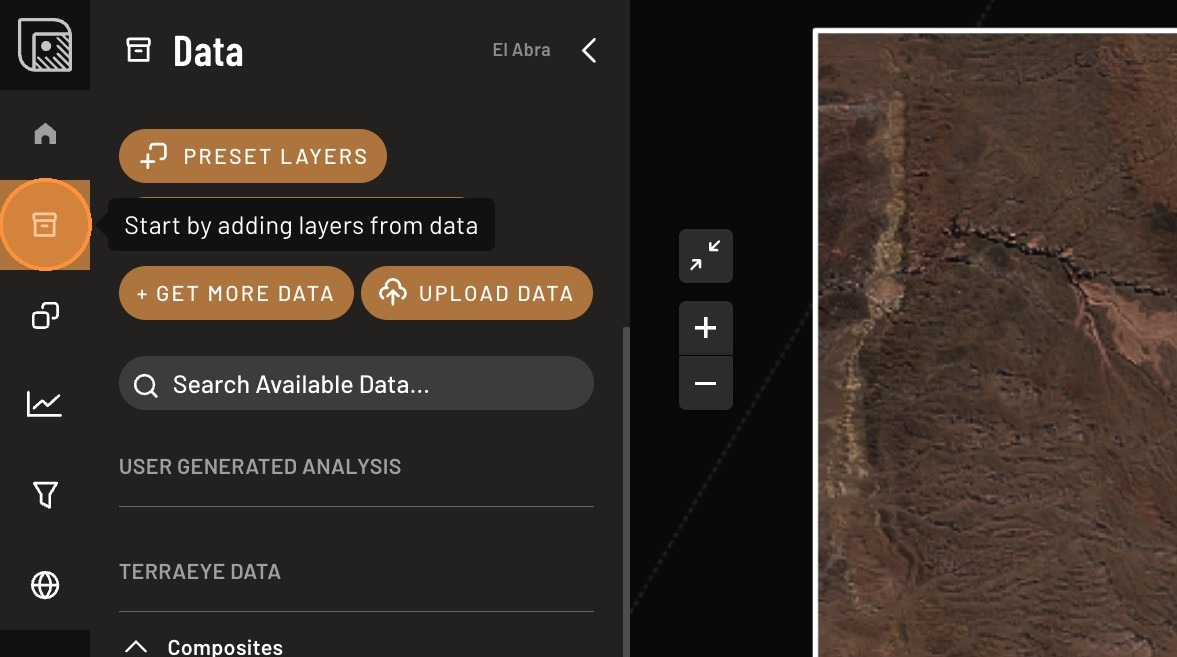
2. Data
Description: The Data Tab stores all data related to the selected area. You can: - Upload new datasets for analysis. - Organize and manage your data. - Add data to the Layer Tab for visualization.
Screenshot:
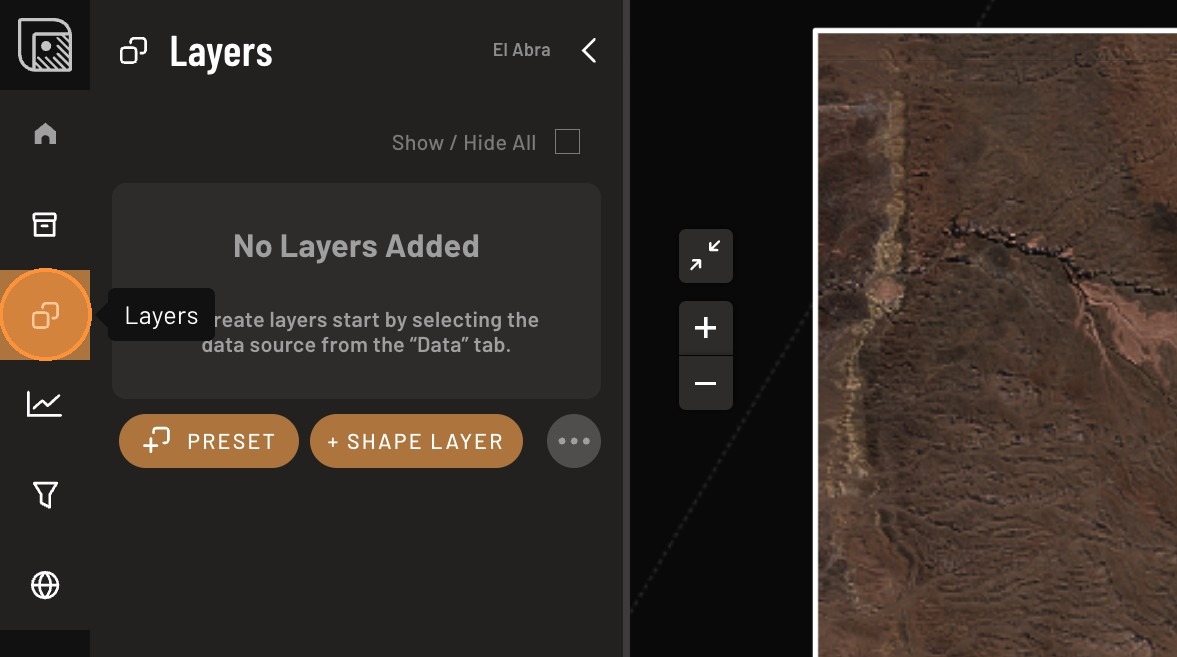
3. Layers
Description: The Layer Tab allows you to manage and visualize different layers on the map. You can: - Add layers from the Data Tab. - Toggle layers on or off to customize the map view. - View results from spectral analyses.
Screenshot:
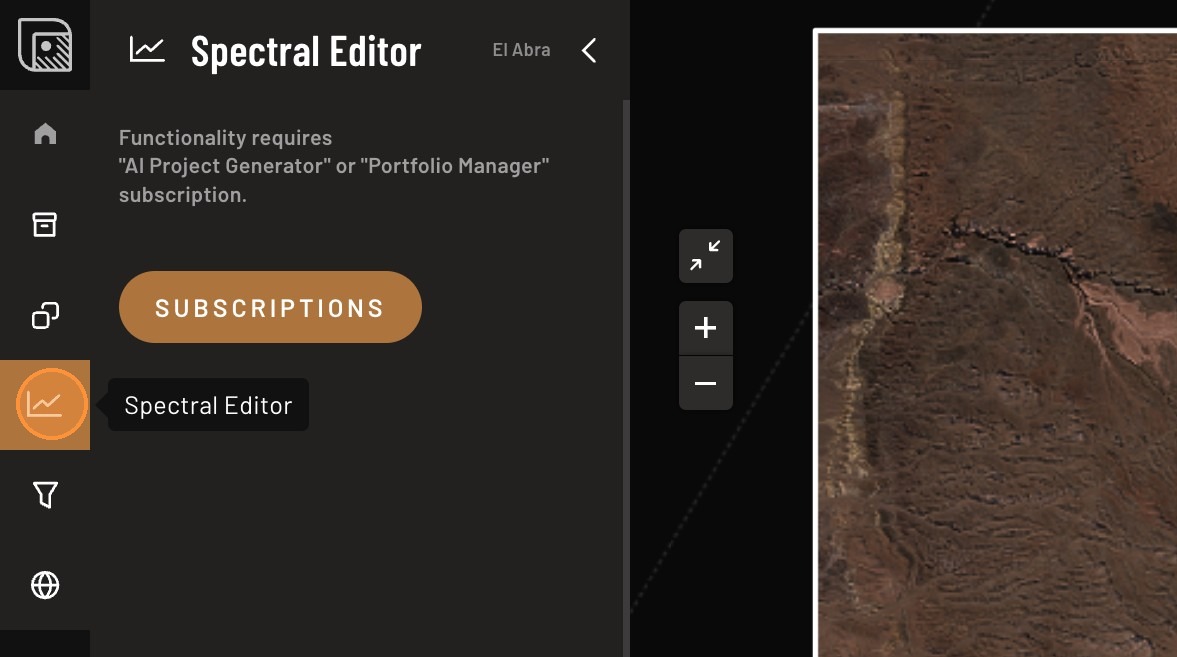
4. Spectral Editor
Description: The Spectral Editor is an advanced tool for analyzing spectral curves. You can: - Visualize and analyze spectral data. - Compare multiple spectral curves. - Export spectral data for further use.
Screenshot:
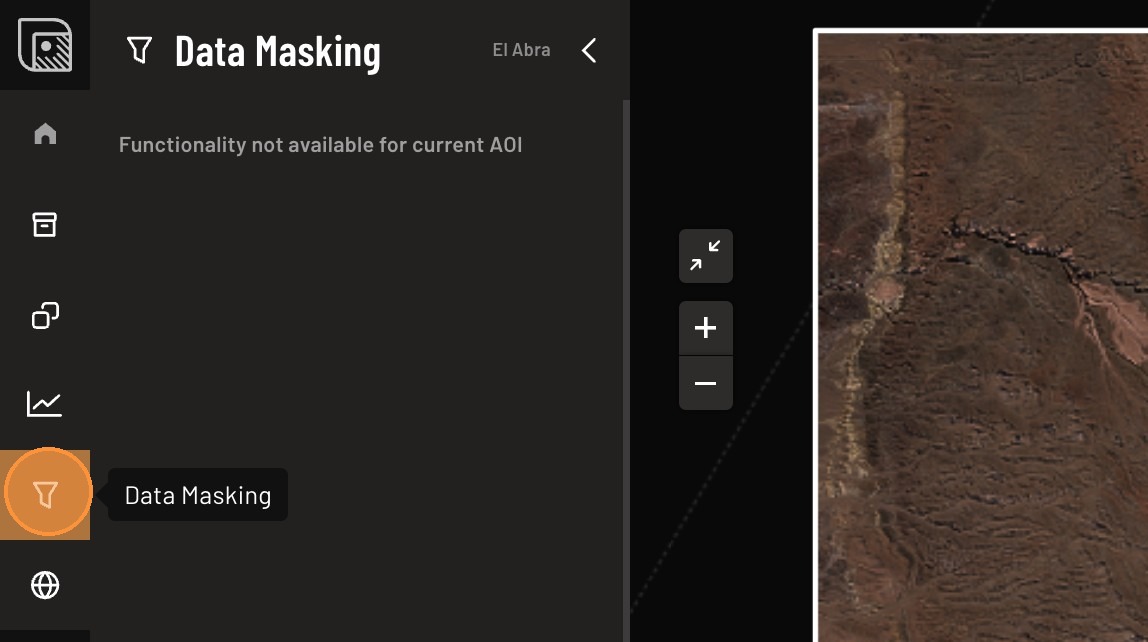
5. MaskingHub
Description: The MaskingHub provides advanced tools for masking and refining analysis results. You can: - Create custom masks to filter data. - Apply predefined filters for specific analysis needs. - Combine multiple masks for complex analyses.
Screenshot:
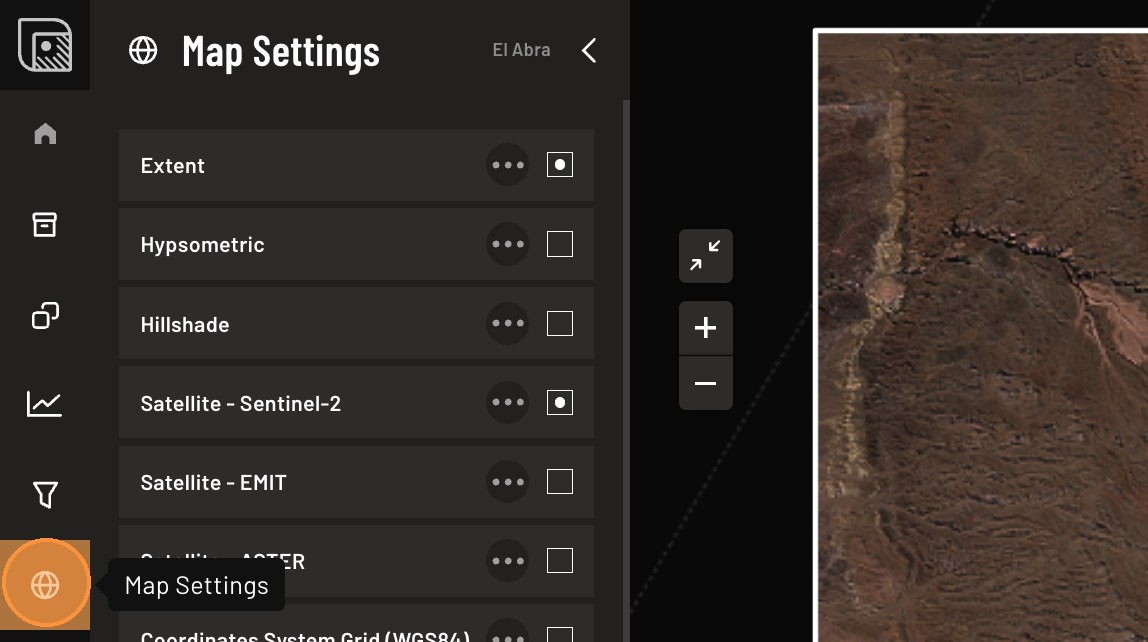
6. Map Settings
Description: The Map Settings section allows you to customize the map view. You can: - Choose satellite basemaps or other map types. - Display raw data overlays. - Add hillshade and hypsometric layers for topographic details.
Screenshot: